12:00:00
Limited-Time Sale:Save up to 41% per credit on IMG2Excel credit packs
Save 41%Save up to 41% per credit
Convert image to Excel online with IMG2Excel. Upload a screenshot, scanned table, JPG, PNG, receipt, invoice, report, or spreadsheet photo, then extract rows and columns into an editable XLSX file.

Drag & drop your image here
Supports PNG, JPG, WebP, HEIC, and HEIF images up to 4MB
Preview how IMG2Excel turns a table image into a clean spreadsheet result before you download the XLSX file.
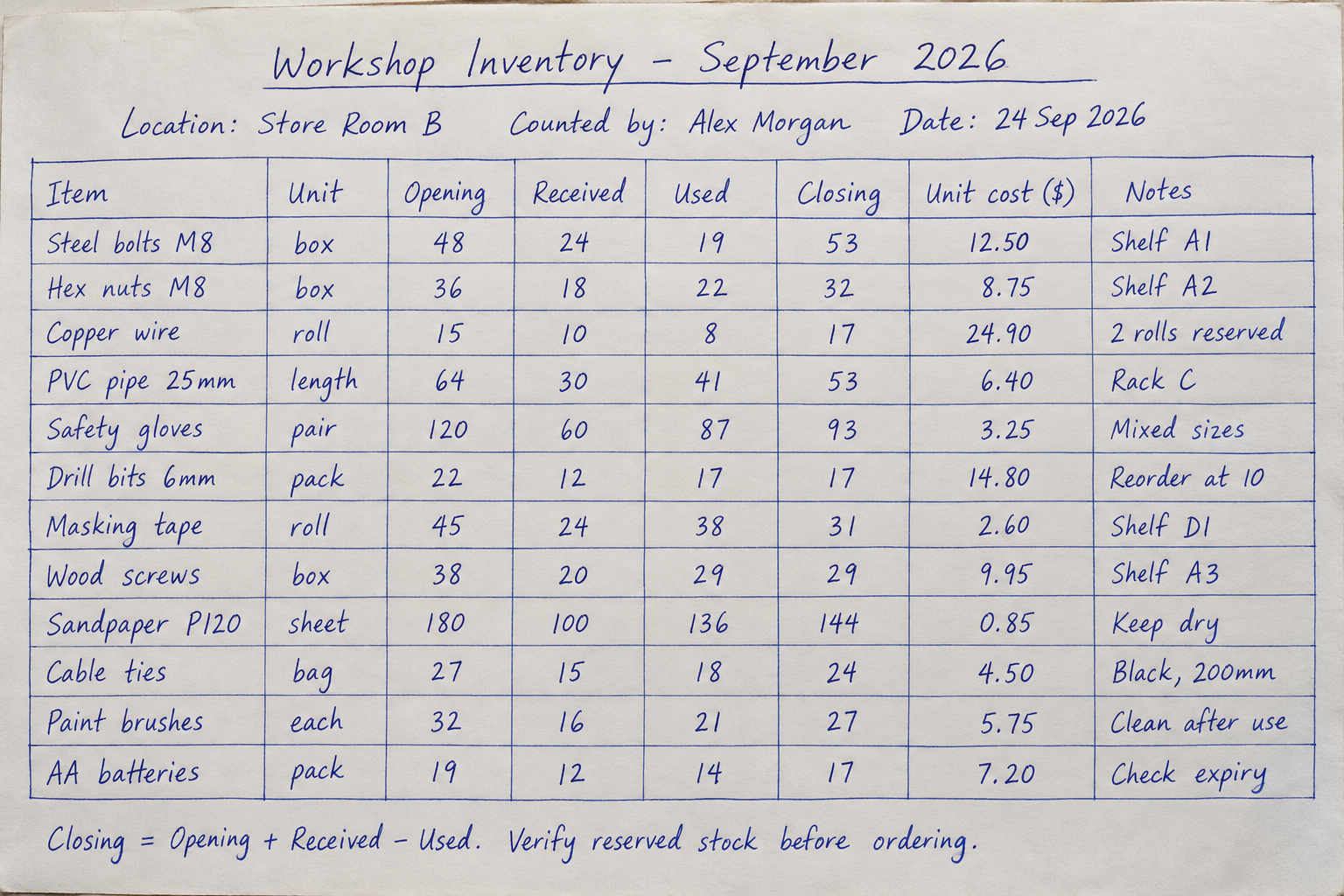
Faster table recovery
Use an image to Excel workflow when table data is trapped inside a screenshot, scan, or photo.
These features make IMG2Excel a faster, cleaner image to Excel converter for table screenshots, spreadsheet photos, scanned reports, and document images.
Convert images, screenshots, and scanned tables into editable Excel sheets in just a few seconds.
Accurately extract text, numbers, and tables from JPG, PNG, WebP, and other image formats using AI-powered OCR technology.
Detect rows, columns, and table structures while preserving the original layout inside Excel cells.
The converted Microsoft Excel spreadsheet is editable, so you can update the data before downloading.
Preview the converted file right away and rerun OCR when the output needs improvement.
Upload and convert multiple JPG images at once to reduce repetitive manual data entry.
Use common input formats including JPG, JPEG, PNG, and WebP across different scanners and devices.
Uploaded and converted files are stored encrypted and deleted within 24 hours so sensitive business or financial data stays confidential.
Process international documents with OCR that recognizes text across dozens of languages.
Convert images to Excel on any operating system or device with a modern web browser.
Use this photo to Excel converter from anywhere with a stable internet connection.
Get help with conversion issues, file errors, or tool-related questions whenever you need it.
Add a screenshot, scanned table, receipt, invoice, report, JPG, PNG, or spreadsheet photo that contains the data you want to recover.
The image to Excel converter is built for table-heavy files that would otherwise require manual retyping.
IMG2Excel reads table structure, detects rows and columns, and turns the image into spreadsheet-ready data.
Review the extracted preview to catch missing cells, merged-cell issues, or recognition errors before using the final file.
Export the cleaned result as an Excel file that you can open, edit, sort, calculate, and share.
When account history is enabled, you can return to past image to Excel conversions without processing the same image again.
IMG2Excel helps teams and individuals turn image-based tables into clean spreadsheets for everyday data recovery work.
Reduce manual retyping by using table extraction for screenshots, scanned tables, and recurring data entry tasks.
Convert scanned statements, invoices, receipts, and budget tables into editable Excel files for review and reconciliation.
Extract tables from screenshots, reports, and image charts into Excel for faster analysis and decision-making.
Turn notes, charts, research tables, and reference images into spreadsheet-ready data for easier analysis.
Convert image-based project plans, timelines, and resource tables into manageable Excel sheets.
Extract tables from lab results, forms, and record screenshots into organized Excel files for internal workflows.
An image to Excel converter turns table data from a screenshot, scanned table, JPG, PNG, or photo into an editable spreadsheet. IMG2Excel reads the table structure, previews the extracted rows, and exports a standard XLSX file.
Upload your image, let IMG2Excel extract the rows and columns, review the preview, and download the result as an XLSX file. The same image to Excel workflow works for screenshots, scans, receipts, invoices, reports, and spreadsheet photos.
Yes. For image to Excel conversion, IMG2Excel supports common table image formats including JPG, JPEG, PNG, WebP, HEIC, and HEIF, with uploads up to 4MB per image. You can convert one image or use batch processing for multiple screenshots, scans, or table photos.
Yes. IMG2Excel detects rows, columns, labels, numbers, and table-like structure from images, then prepares an editable XLSX file. Clear borders, straight photos, and readable text improve the image to Excel result.
Yes. Upload a screenshot that contains a table, dashboard, report, or spreadsheet view. IMG2Excel can turn the screenshot to Excel by recognizing the table and exporting editable rows and columns through the same image to Excel workflow.
IMG2Excel uses OCR and table recognition to process scanned tables, printed reports, receipts, invoices, and document photos. This image to Excel OCR quality depends on image clarity, text size, lighting, and whether the table is fully visible.
You can try IMG2Excel once without logging in. After you sign in, your account receives free credits, and you can earn more free credits through daily check-in. Larger or repeated image to Excel workflows use credits, with Pro features available for users who need more capacity.
Yes. IMG2Excel works in your browser, so you do not need desktop software or browser extensions. Upload an image, start image to Excel online, preview the table, and download the Excel file when processing is complete.
Yes. IMG2Excel is a web-based converter, so you can use it from a phone browser on Android or iPhone. For the best result, upload a clear screenshot or take a well-lit, straight photo of the table.
Yes. After image to Excel conversion, IMG2Excel exports standard XLSX files, which can be opened in Microsoft Excel, imported into Google Sheets, or used in other spreadsheet apps that support Excel files.
IMG2Excel takes user privacy seriously. During image to Excel processing, uploaded images and conversion results are processed for table extraction and file generation, and stored with encryption where storage is needed. Results that are not saved to Assets are deleted within 24 hours. Pro users can turn on Save to assets to keep results for up to 60 days, and saved History items can be deleted immediately from your account. If you want to delete saved items now, click here to open Assets.
Commercial use is available to paid users only. If you are using converted Excel data for client work, business operations, paid reports, marketing, or other commercial projects, please use a paid plan or paid credits and make sure you have the right to process the original images.
Retake the image with better lighting, keep the camera straight, and make sure the table text and cell borders are visible. A clearer image gives image to Excel recognition more reliable structure to extract and reduces the chance of incorrect cells.
Manual cropping is not required before image to Excel conversion, but it can help when the image contains a lot of unrelated content. If possible, keep the whole table visible, avoid cutting off row or column edges, and upload the cleanest version of the table area.
